Before continuing with this guide, ensure you're logged into DirectAdmin and viewing the main dashboard.
If you're not sure how to access DirectAdmin from your Help.com account, please follow our step-by-step guide here: https://support.help.com/how-to-log-into-directadmin
Step 1:
Log into DirectAdmin and click SSL Certificates (found under “Advanced Features”).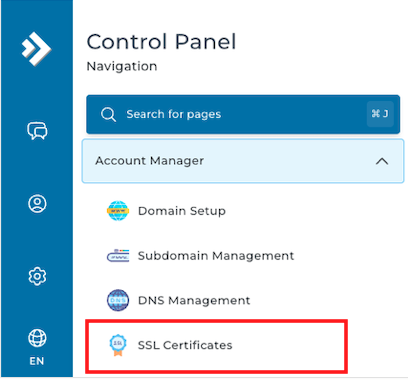
Step 2:
On the SSL page, select the first grayed out tab labelled with "Get automatic certificate from ACME Provider."
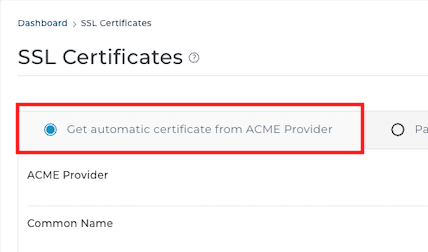
Step 3:
Fill in the details:
ACME Provider: Choose Let’s Encrypt as the provider (this is recommended).
Common Name: Type just your domain (e.g., yourdomain.com). Do not add www, http://, or https://.
Key Size: Leave it on the default 4096.
Certificate Type: Leave it on the default SHA256.
DNS Provider: Leave blank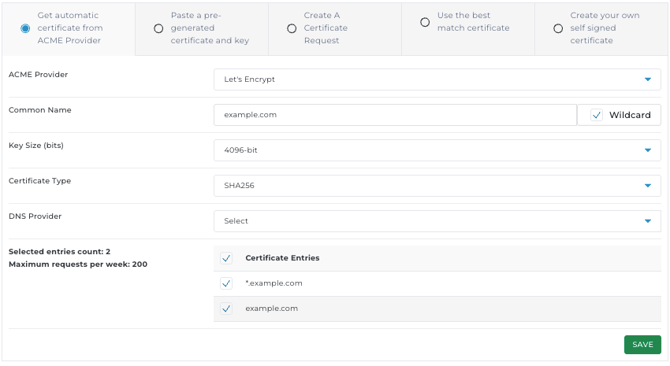
Step 5:
Choose what to protect with the certificate:
- Always tick yourdomain.com and www.yourdomain.com (these are the most important).
- If you only want SSL on specific subdomains, tick just those boxes.
Our recommendation: Click the Wildcard button (to the right of the Common Name row). This covers all subdomains (e.g., blog.yourdomain.com, shop.yourdomain.com) with the one certificate — simple and future-proof.

Step 6:
Tick the box Force SSL with https redirect. This automatically sends visitors to the secure https version and stops the insecure http version from working. Make sure you click Save as shown below.
Step 7:
Scroll down and click Save.
That’s it! The free Let’s Encrypt certificate will be issued and installed automatically. It may take a few minutes to become active across the internet.