Before continuing with this guide, ensure you're logged into DirectAdmin and viewing the main dashboard.
If you're not sure how to access DirectAdmin from your Help.com account, please follow our step-by-step guide here: https://support.help.com/how-to-log-into-directadmin
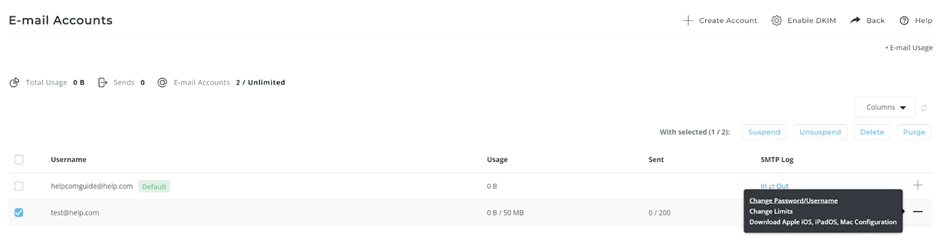
To reset an email account password navigate to your DirectAdmin Control Panel then click on your “Email Manager” > “E-Mail Accounts” From there tick the box adjacent to the email that you require the password to be reset for.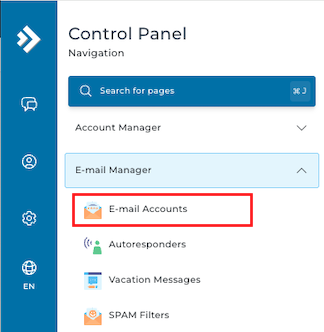
Then click the “+” Icon/Button, then click “Change Password/Username”
Below is an image for guidance.
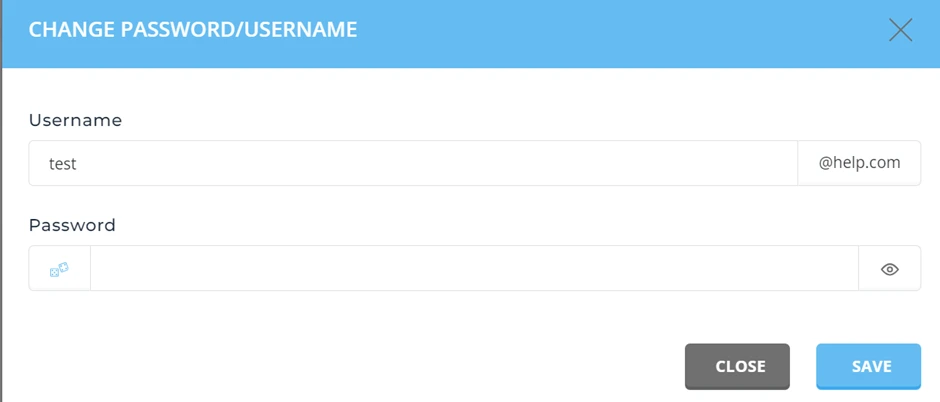
After clicking “Change Password/Username” you will be propted to type an update username and password, fill in the updated details then press “Save”.