The File Manager lets you manage files and folders directly in your browser: upload, download, edit, rename, delete, copy/move, change permissions, and create new files/folders.
Before continuing with this guide, ensure you're logged into DirectAdmin and viewing the main dashboard.
If you're not sure how to access DirectAdmin from your Help.com account, please follow our step-by-step guide here: https://support.help.com/how-to-log-into-directadmin
Step 1:
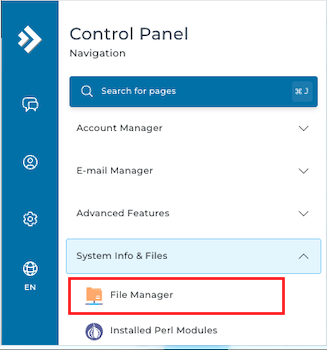
Access File Manager Log into DirectAdmin → System Info & Files section → click File Manager
Step 2: Navigating Folders
- Click a folder name or icon to enter it.
- Use the left “Folders” menu to go back or jump to Root(Home Icon) (top level, usually /home/username).
- If you are uploading website files to a non-Wordpress file your website will be located - /domains/yourdomain/public_html
Step 3: Copying Files
- Go to your selected folder.
- Tick the box next to the file(s) or click the + on the left → Copy.
- Go to the destination folder.
- Click Copy (or Move).
Same as copying, but choose Move from the Clipboard.
Step 5: Renaming Files/Folders
- Click the + on the left of the item → Rename.
Step 6: Deleting Files/Folders
- Tick the box next to the item(s).
- Click Remove (top right) → confirm.
Warning: Deleting a folder deletes everything inside it.
Step 7: Changing Permissions
- Click the set permissions number (e.g., 644).
- Adjust the checkboxes → click the green check. (Or tick items → Set Permissions button at top.)
Some common permission levels are:
Files
600 Makes a file inaccessible
644 Readable by everyone (e.g. HTML documents)
666 File can be read and modified (e.g. files modified by scripts)
755 File can be read and executed by everyone (e.g. for scripts)
777 Writable and executable by everyone (not recommended)
Directories
711 Files in directory can be read by everyone, but not contents
755 Files and contents of directory can be seen by everyone
777 Allows full read/write/delete access to a directory (not recommended)
Most scripts need to be set to 755. Please refer to the script’s documentation for proper installation instructions.
Step 8: Creating New Files/Folders
- Navigate to the desired folder.
- At the top left, click Create Folder or New File.
- Enter the name → Create.
Step 9: Editing Text Files
Click the file name to view → Edit (top left) → make changes → Save.
Step 10: Uploading Files
- Navigate to the target folder.
- Scroll down → Upload File.
- Drag & drop files or browse → Upload.